BBT Core Installation and Pairing
User Manual for Installation, Pairing and Use
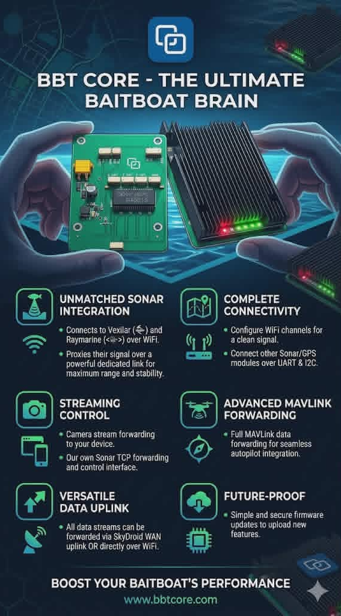
BBT Core – The Ultimate Baitboat Brain. A practical guide for connecting the BBT Core, pairing it with Raymarine, installing the WiFish app and using it in practice.
Important: whenever BBT Core settings are changed, the BBT Core must be restarted for the changes to take effect.
Table of Contents
- 1. Connecting the BBT Core
- 2. Removing the standard Wi-Fish app (if installed)
- 3. Pairing the BBT Core with Raymarine
- 4. Downloading the Special Wi-Fish App
- 5. Use
- 6. Overview of Other Connections
- 7. Builder Mode via Service Code
- 8. Checklist for Boatbuilders
1. Connecting the BBT Core
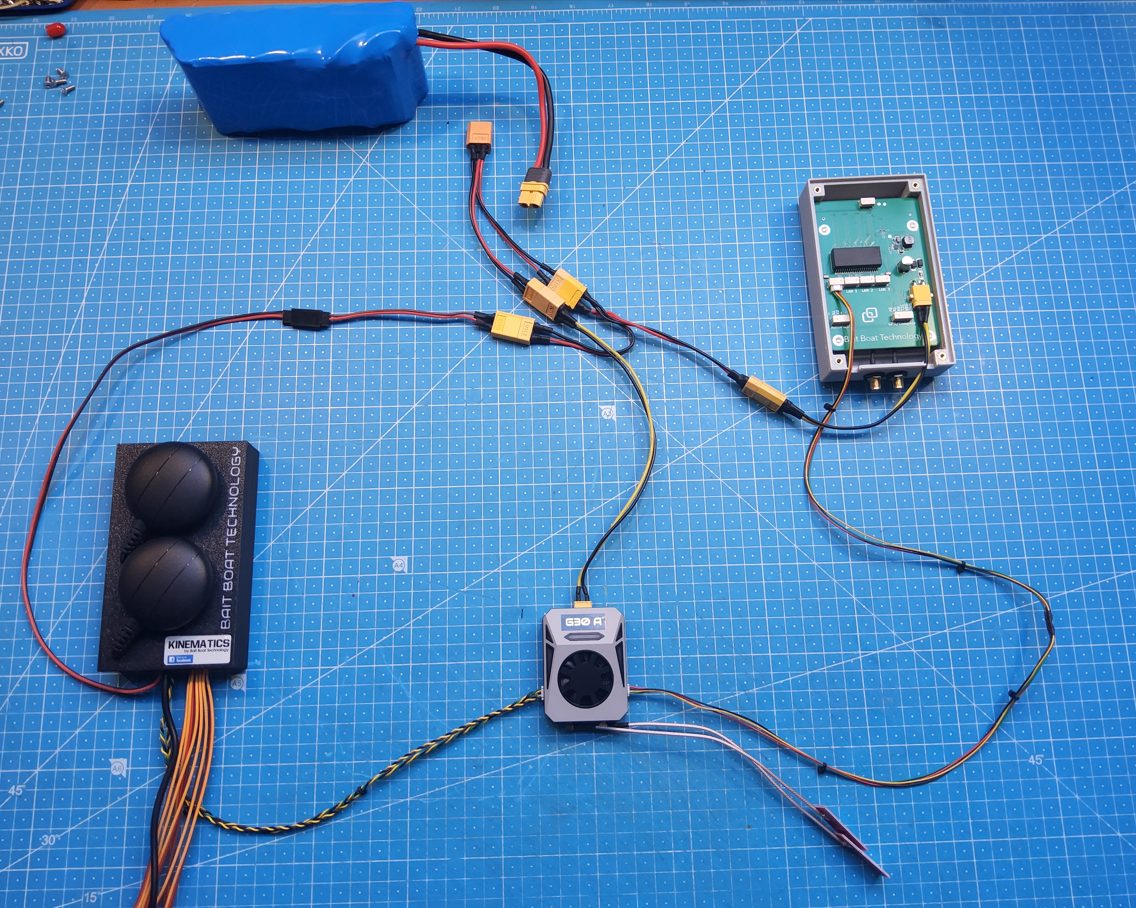
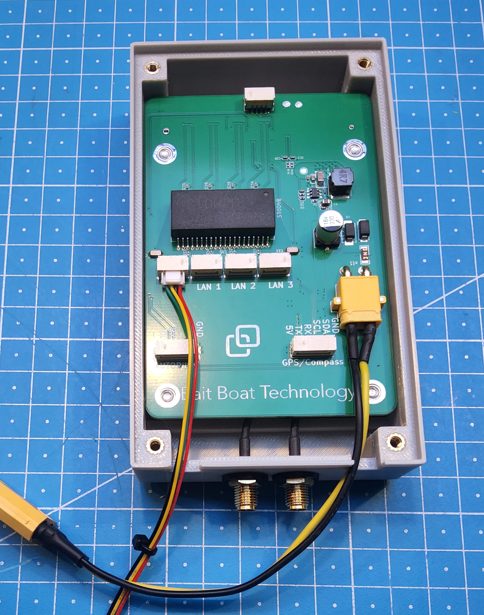
- Connect the 5 to 24V power supply.
- Connect the WAN output of the BBT Core to the LAN input of the Skydroid GR01.
2. Removing standard Wi-Fish app (if installed)
- Open Settings.
- Go to Apps.
- Select the WiFish app.
- Tap Remove.
3. Pairing the BBT Core with Raymarine
- Open the BaitBoat Autopilot app.
- Under Help, check that you are using at least version 1.470.
- Check that you are connected via Skydroid Connect.
- Go to Boat Setup.
- Go to BBT Core.
- Tick the checkbox for Skydroid G-Series.
- Set Transmit Power to 1 dB.
- Go to Pair WiFi Device.
- Find Raymarine and click it.
- Enter the password and confirm.
- Click NEXT.
- Wait until you receive the message that the configuration has been completed successfully.
- Click CLOSE.
- Restart everything: both the BBT Core and the Skydroid handheld transmitter.
4. Downloading the Special Wi-Fish App
- Check that you are connected to the internet.
- Start the BaitBoat Autopilot app.
- Go to Boat Set-up.
- Select BBT Core.
- Click Install WiFish App.
- Click INSTALL.
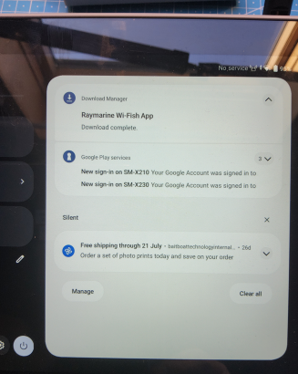
- Swipe down from the top of the screen, starting in the middle of the screen.
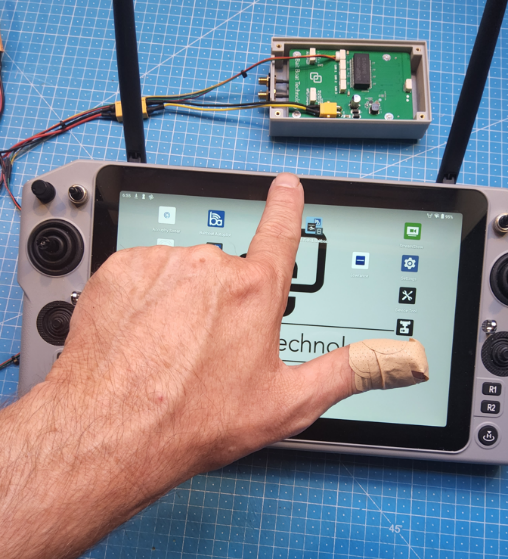
- Tap Download complete.
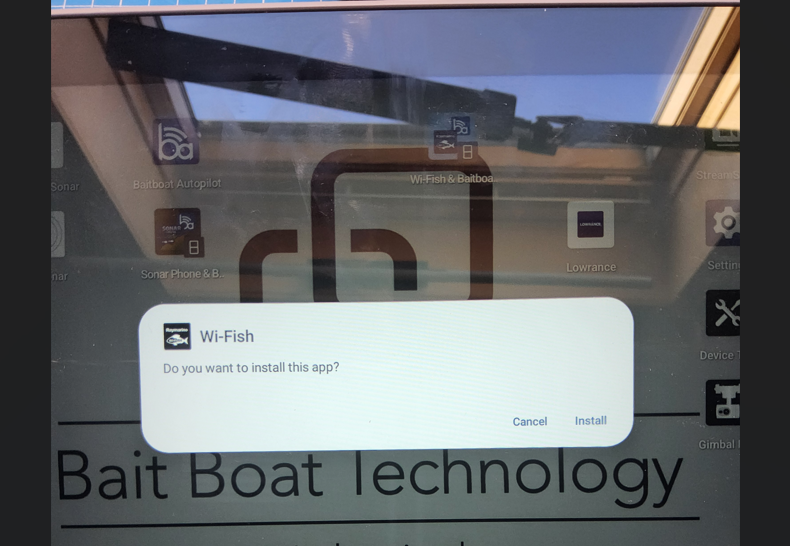
- Click Install.
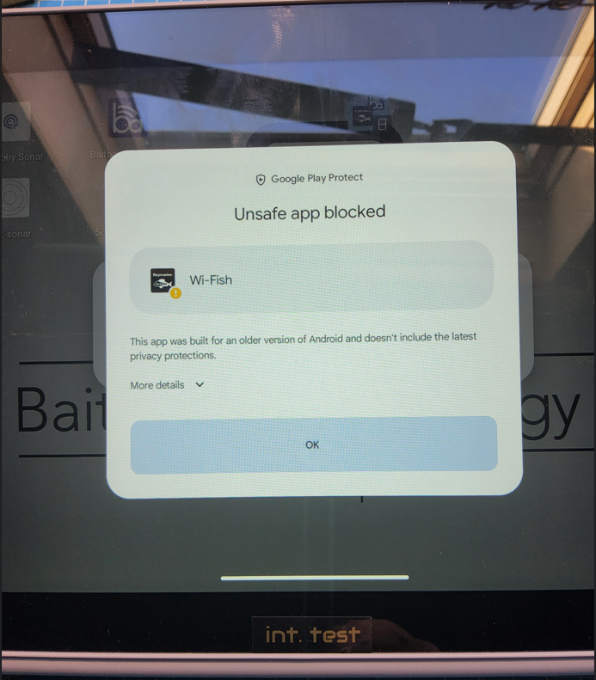
- Select More details.
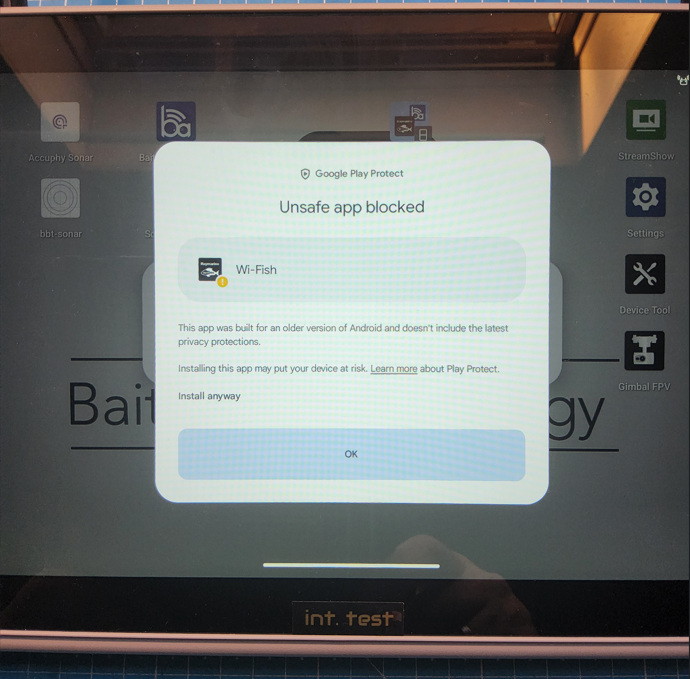
- Click Install anyway.
- Close the Raymarine app.
The installation is complete.
Note: after changing BBT Core settings, restart the BBT Core.
5. Use
Note: during initial use, the Raymarine connection may briefly drop a few times. In most cases, the connection will automatically be restored within one second. This happens because the Skydroid protocol automatically searches for the most suitable bandwidth. During this search, the connection may be interrupted temporarily. Wait calmly until the connection remains stable.
6. Overview of Other Connections
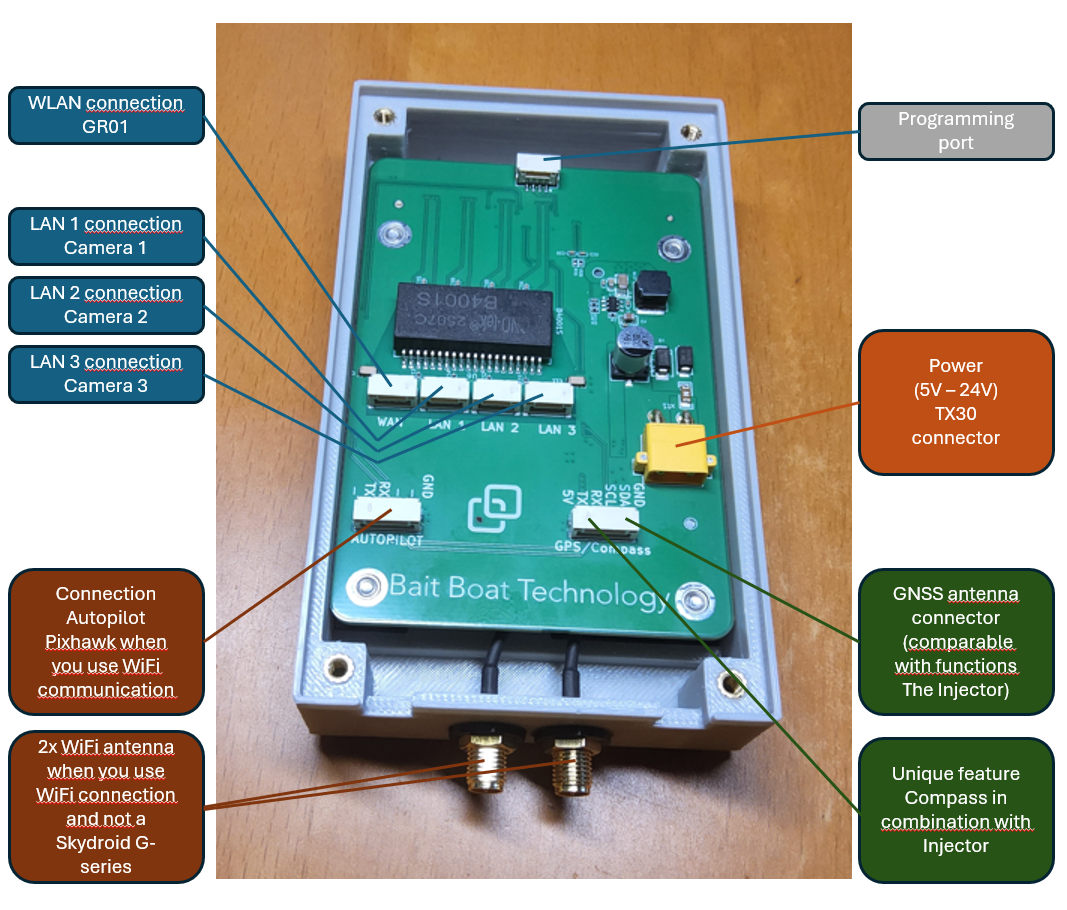
Note: Compass connection and calibration are still under development.
- Camera connections are functioning.
- WiFi communication is functioning.
- GPS antenna connection is functioning.
- Compass is still under development.
7. Builder Mode via Service Code
When setting up the BBT Core, the tablet or Skydroid sometimes does not contain the builder’s account (for example on a freshly configured device). In that case you can still unlock full builder mode with a service code.
- Open the BaitBoat Autopilot app.
- Go to the Help/Feedback tab.
- Tap Service Code.
- Enter the service code and confirm.
A valid service code unlocks full builder mode (Real Builder). Service codes are provided by Baitboat — contact us to request one. Builders can also view today’s service code in the app: it is shown below the Service Code button while builder mode is active.
8. Checklist for Boatbuilders
Run through this checklist before handing a Skydroid-equipped boat to the customer.
- Wiring — BBT Core power connected (5–24 V) and the BBT Core WAN output wired to the LAN input of the Skydroid GR01.
- Pairing — BBT Core paired with Raymarine (see section 3): Skydroid G-Series ticked, Transmit Power at 1 dB, and both the BBT Core and the Skydroid handheld restarted afterwards.
- Wi-Fish app — the special Wi-Fish app installed via Boat Setup → BBT Core → Install WiFish App (see section 4).
- Steering test — with the boat on a stand, drive each motor briefly with the Skydroid sticks and confirm the direction and the rudder response are correct for this boat (see the Ardupilot motor and servo test guide). On twin-motor boats, check both motors.
- Connection check — leave the boat connected for a few minutes and confirm the Skydroid Connect link stays stable (a few brief drops in the first minutes are normal — see section 5).
- Builder mode — if the device lacks the builder’s account, unlock it with a service code (see section 7), and hand the boat over in customer mode afterwards.
- Final restart — restart the BBT Core and the Skydroid one last time and verify the boat connects immediately.
When everything ticks off, the boat is ready for the customer.